Who this is for: Anyone with scraped leads in SpiderIQ who wants AI-written copy for each business, such as a description, an FAQ or a search snippet, ready for a directory page.
What this does: You write a recipe of AI steps, test it on 3 leads, then run it over a campaign or bulk run you already have. Each lead gets the fields your steps return, stored in your workspace or published to your own directory.
Before you begin
You have at least one campaign or bulk run with stored leads.
You can open Enrichment in the dashboard (app.spideriq.ai/dashboard/enrichment).
To publish to a directory, you have a directory category on your site.
How a recipe works
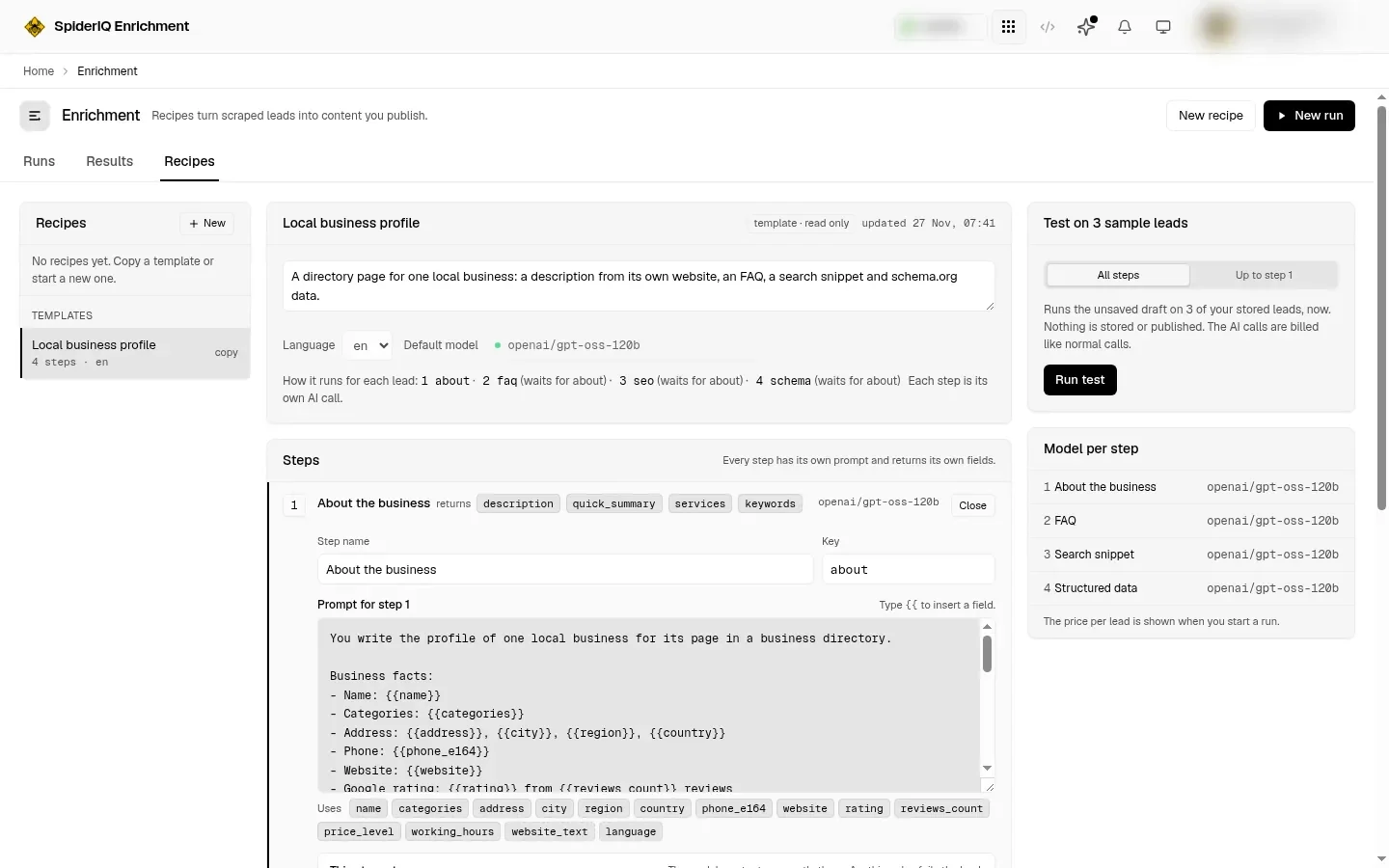
A recipe is an ordered list of steps. Each step is its own AI call, with:
its own prompt, which you write and can change at any time;
its own model, picked in the SpiderGate model browser (new recipes start on
openai/gpt-oss-120b);the fields it returns, each with a type and limits, such as a description of 120 to 200 words.
A prompt reads your lead's data through tokens in double braces. {{name}}, {{city}} and {{website}} come from the scrape. {{website_text}} is the text of the lead's website, cut to 8,000 characters. A later step can read an earlier step's answer, for example {{about.description}}. A single brace, {name}, is plain text and is left as it is.
Steps
Open Enrichment and select the Recipes tab. Under Templates, open Local business profile. It has 4 steps: about, faq, seo and schema. Click copy to put an editable copy in your workspace, or click New to start from an empty recipe.
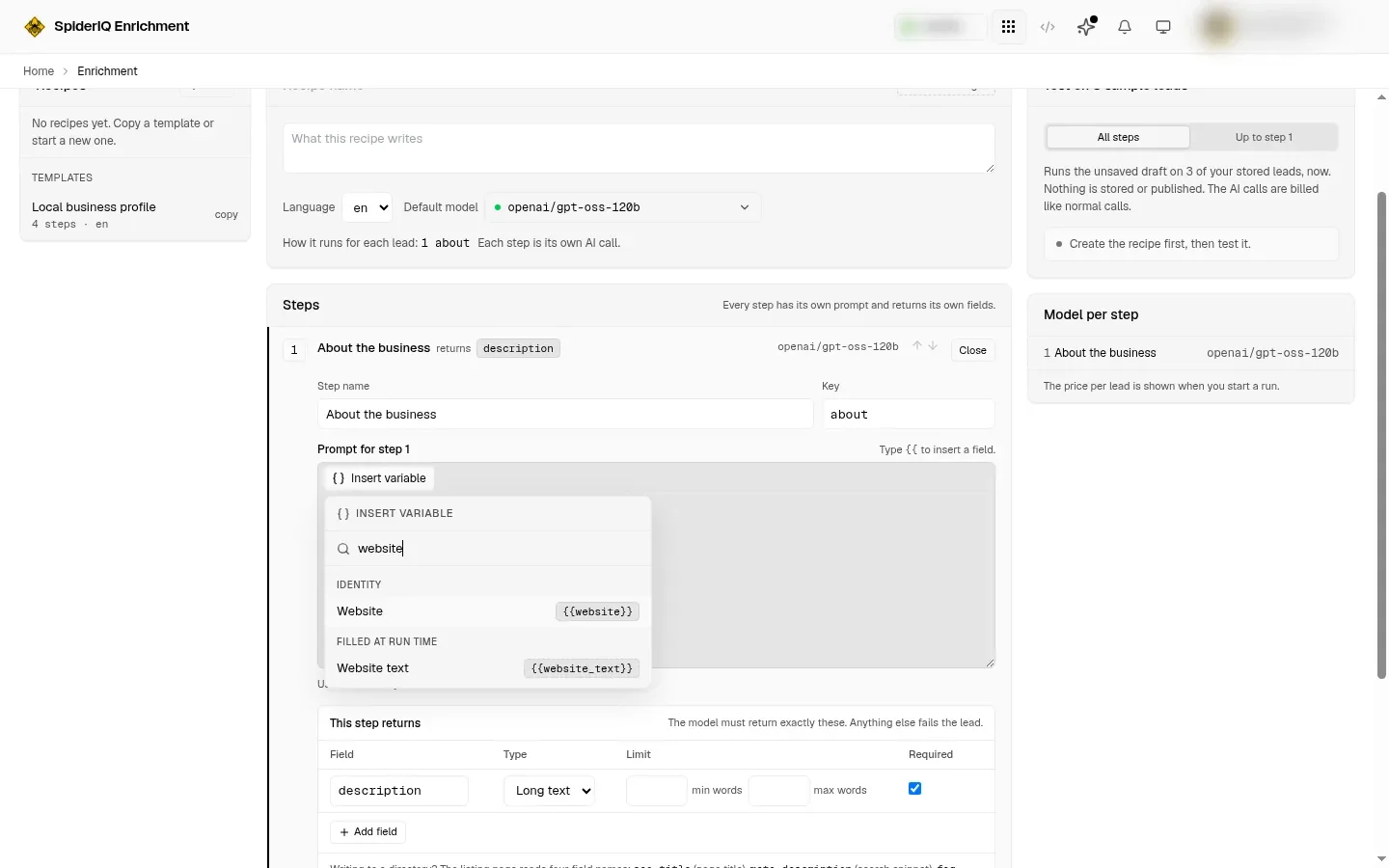
In a step's prompt, click { } Insert variable, or type
{{. Search for a field and press Enter to insert its token.
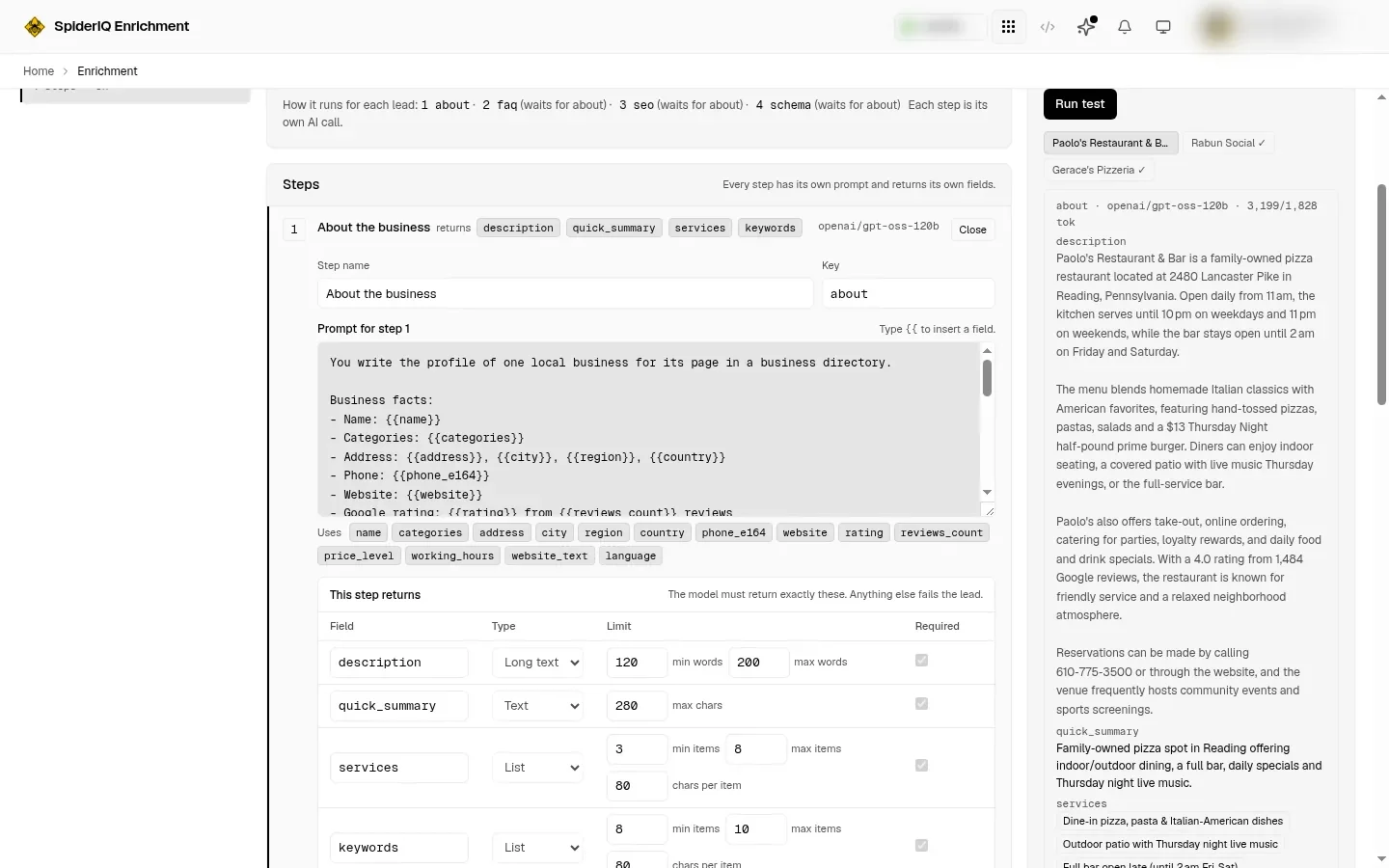
Under This step returns, set each field's name, type and limits. The model must return exactly these fields. Anything else fails the lead.
Pick the step's model, or leave it on the recipe's default model.
In Test on 3 sample leads, click Run test. The draft runs on 3 of your stored leads right away. Nothing is stored or published, and the AI calls count like any other calls.
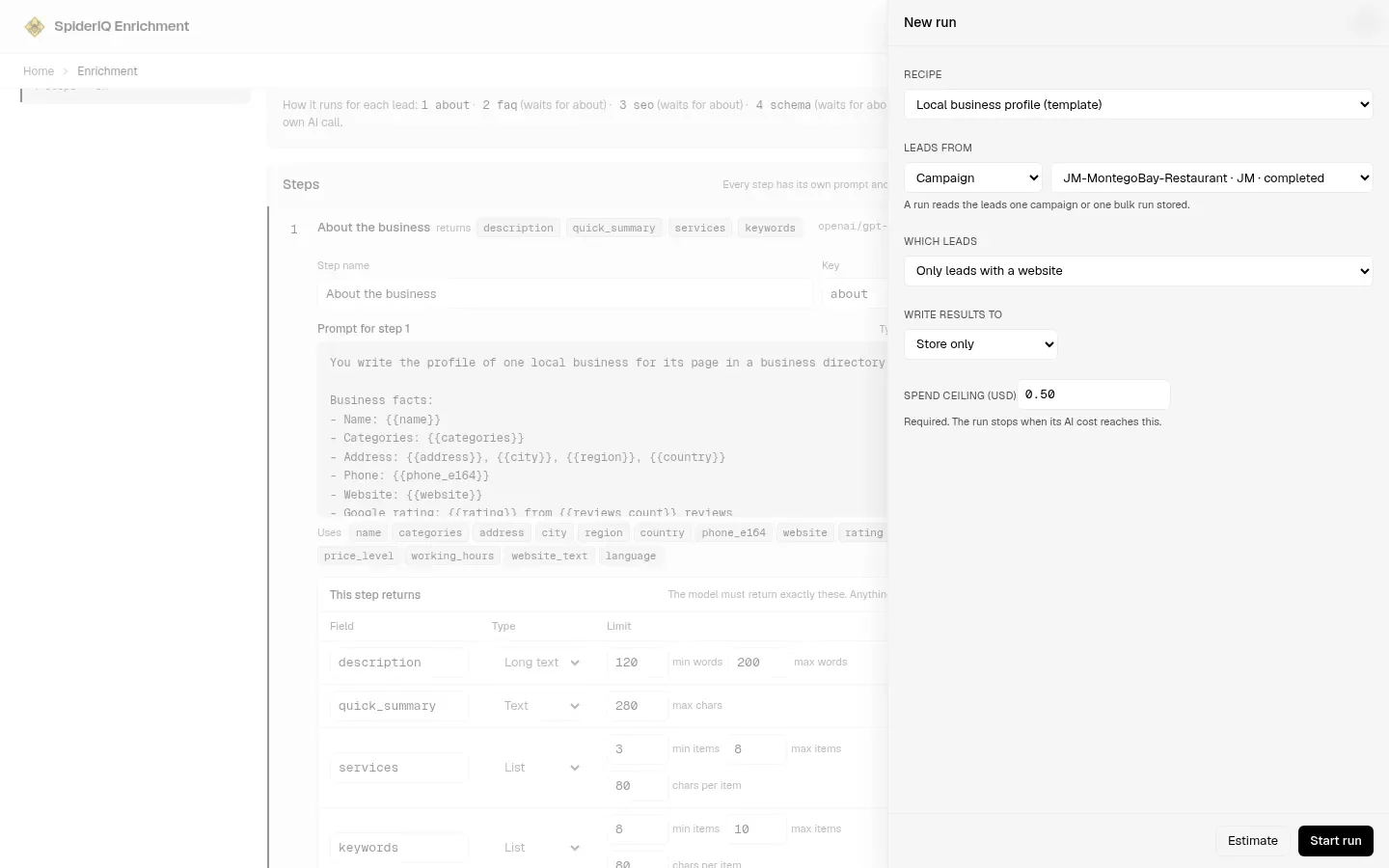
Save the recipe, then click New run. Choose where the leads come from (one campaign or one bulk run), which leads (all of them, only leads with a website, or only leads with an email) and where results go (Store only or Directory).
Enter a Spend ceiling (USD). It is required: the run stops when its AI cost reaches it. Click Estimate to see the price per step before you start, then click Start run.
To publish to your directory, choose Directory and the category in step 6. Results are written as drafts. When you have read them, click Publish on the run. Unpublish takes the AI text off the pages again.
Run it as part of a campaign
In the bulk lead sourcing form or a campaign's settings, turn on Enrichment. Pick a recipe (you can edit a step's prompt in the side panel), the destination and a spend ceiling. When the campaign ends, SpiderIQ queues exactly one run over its leads. With Enrichment off, nothing is queued.
Verify it worked
Open the Runs tab. Your run shows how many leads are valid and how many failed, and what it cost against its ceiling. Open Results to read each lead's answer field by field. If you published to a directory, open a listing page: its page title is the recipe's seo_title, its search snippet is meta_description, and an FAQ step adds structured data to the page.
Troubleshoot
A lead failed with "the lead has no website text"? The lead's website was never scraped. Choose Only leads with a website, or run the website scrape stage on those leads first.
A lead failed with "the answer did not match the fields"? The model's answer broke one of the step's limits, such as a title over 60 characters. Results shows the reason. Loosen the limit or tell the prompt about it.
Saving the recipe is refused? A step refers to a step that runs after it, or two steps return a field with the same name. The editor marks the field. Rename it or reorder the steps.
The run stopped before every lead was done? It reached its spend ceiling. Raise the ceiling and use Run again for the remaining leads.
A new run is refused? Each workspace can start 5 runs an hour and 20 a day, with $5.00 of counted model cost per 24 hours. Wait, or contact us to change your plan.